
First off… what’s a YouTube thumbnail?
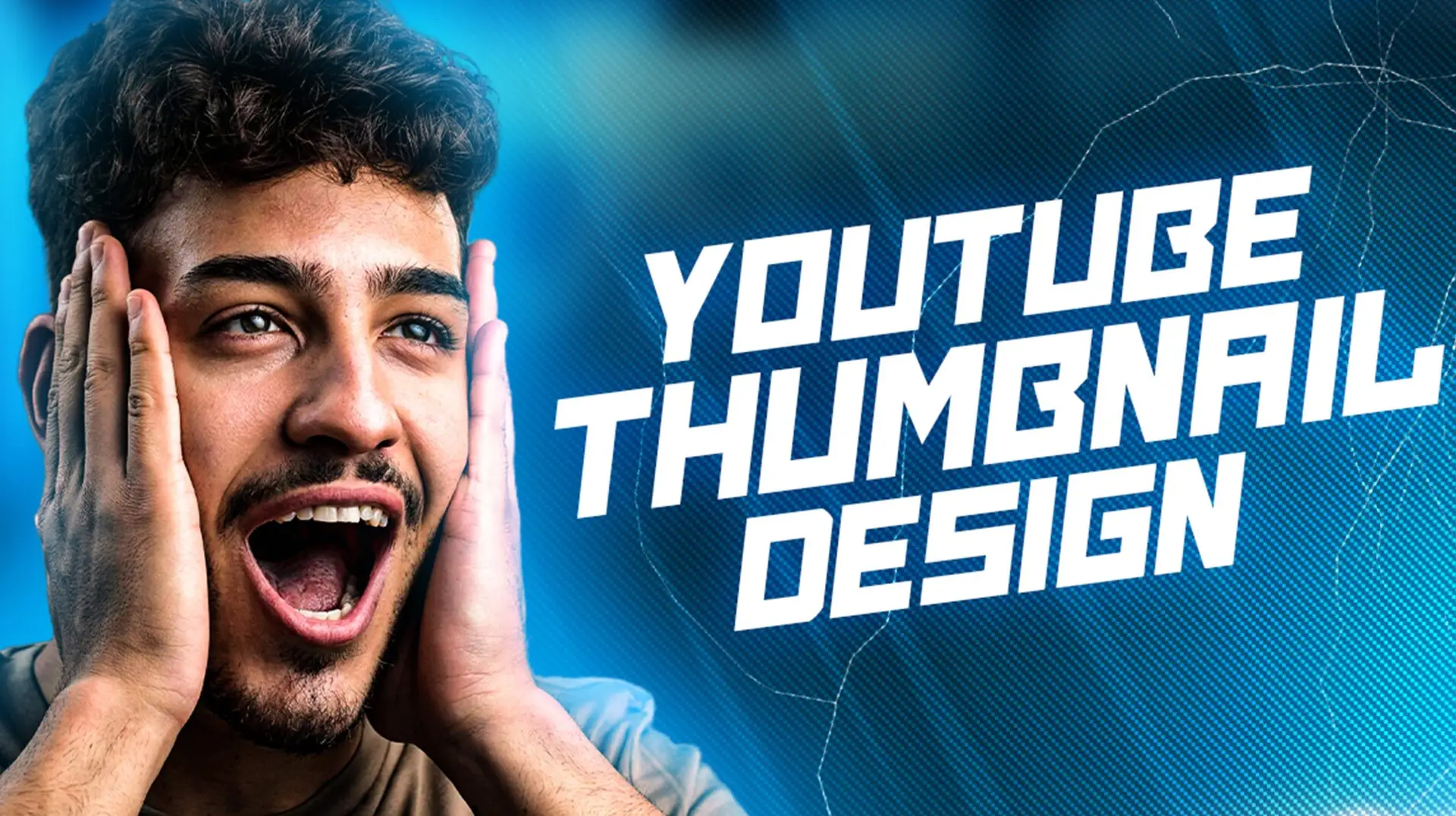
A YouTube thumbnail is a small image that serves as a preview for your YouTube video. Its purpose is to increase clicks for your video. It is the wordless “hook” that the audience sees, prior to clicking on a YouTube video.
Why is it important? Your YouTube thumbnail is what creates the first impression for your video – you could think of it as a book cover. (And while everybody says “Don’t judge a book by its cover”, it’s rarely the case.)
There are two ways to get a thumbnail on YouTube: the platform can auto-generate one for you, or you can upload one that you created. Needless to say, the custom one you made is the better choice.
So, let’s explore how to create one that will attract more viewers for you!
Thumbnail Purpose
- Hook The Viewer: There are tons of videos on YouTube about the same exact thing; an attractive thumbnail can help your video stand out and be the deciding factor for your audience.
- Relay the Video’s Content: Your thumbnail should help your audience understand the gist of your video.
- Increase Your CTR: Your click-through rate (CTR) indicates how relevant your content is to your target audience. The higher your CTR, the better. A well-thought-out thumbnail can increase the number of people who click on your video, which will notify YouTube’s algorithm that your video is relevant and engaging.
- Improve Brand Recognition: If you’re a consistent YouTube creator, branded thumbnails can improve your brand recognition by helping your audience easily identify your content. This will foster a better connection and loyal followers.
Perfect YouTube Thumbnail Ingredients
Below is a list of “ingredients” that make a perfect YouTube thumbnail:
Technical Specs
- Your file size should be under 2MB.
- The file formats accepted by YouTube are JPG, PNG, and GIF.
- The standard aspect ratio for YouTube is 16:9.
- The recommended resolution is 1280 x 720 px. The minimum width accepted is 640 px.
Design Pro Tips
- Keep your thumbnail simple, clear, and uncluttered. Your thumbnail should be easy to read, so avoid complex designs.
- Your images should be high-quality and high-resolution.
- Your thumbnail should include your face, preferably expressing some sort of emotion.
- Use bright and bold colors to help your thumbnail stand out.
- A text overlay is essential, but don’t overdo it. Your text should be short and provide the video context. Ensure to use a font that is easily readable on both big and small screens.
- Ensure that your thumbnail represents the video accurately and doesn’t overpromise.
How To Create A YouTube Thumbnail In Canva
Use the following step-by-step guide to create your very own YouTube thumbnail:
- On YouTube, search for topics that are similar to the one you’re about to upload a video on. Take note of how other YouTubers (preferably ones with higher views) have their thumbnails set up, the colors they used, and the styles and designs they implemented.
Note: do not copy their designs – look at them to get ideas of what works. - Go to Canva and create an account. You do not need anything fancy; a free account works just fine. If you already have an account, log in to it.
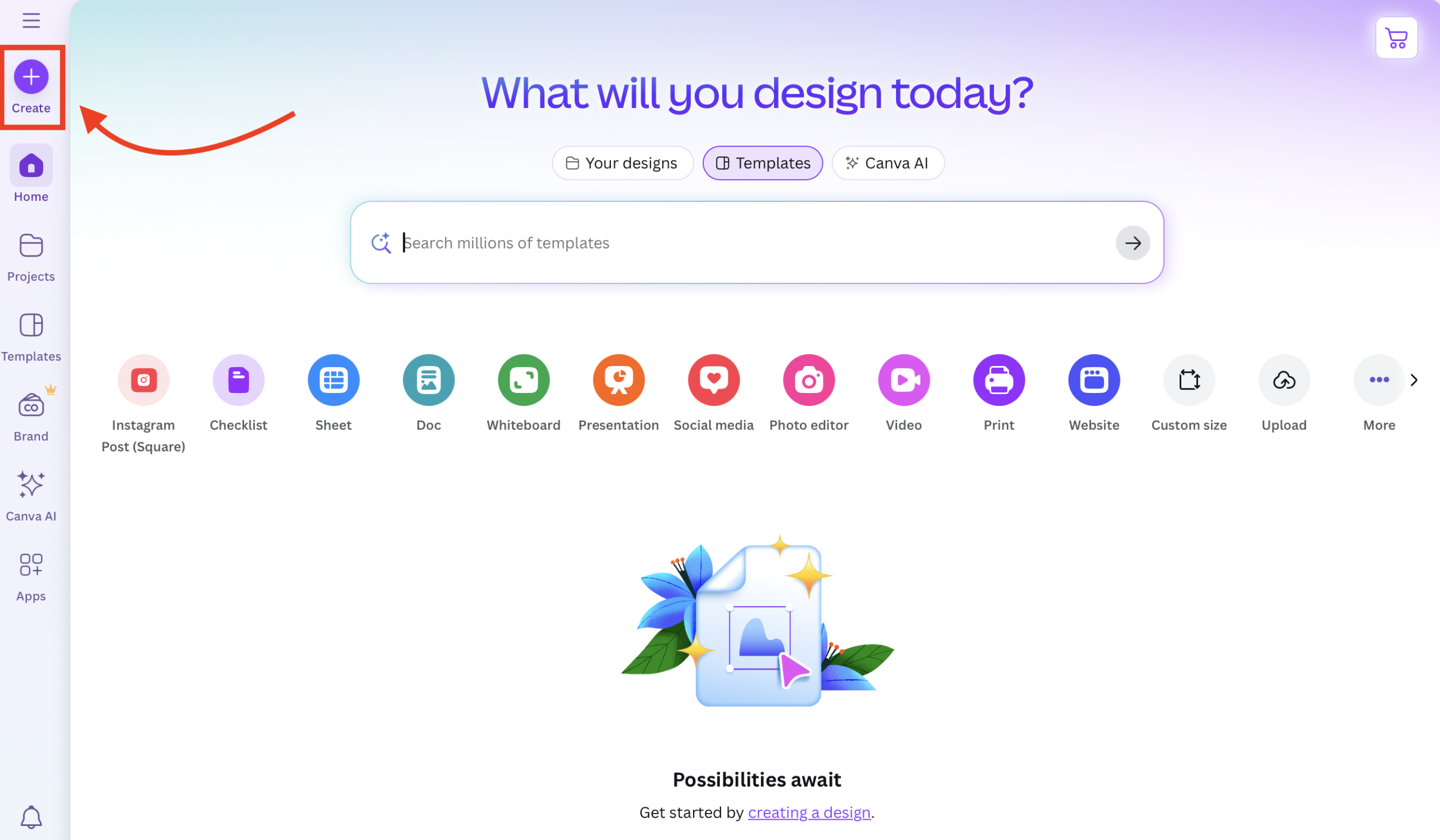
- On the homepage, click on Create a New Design – it is the purple button at the top left corner of your screen.
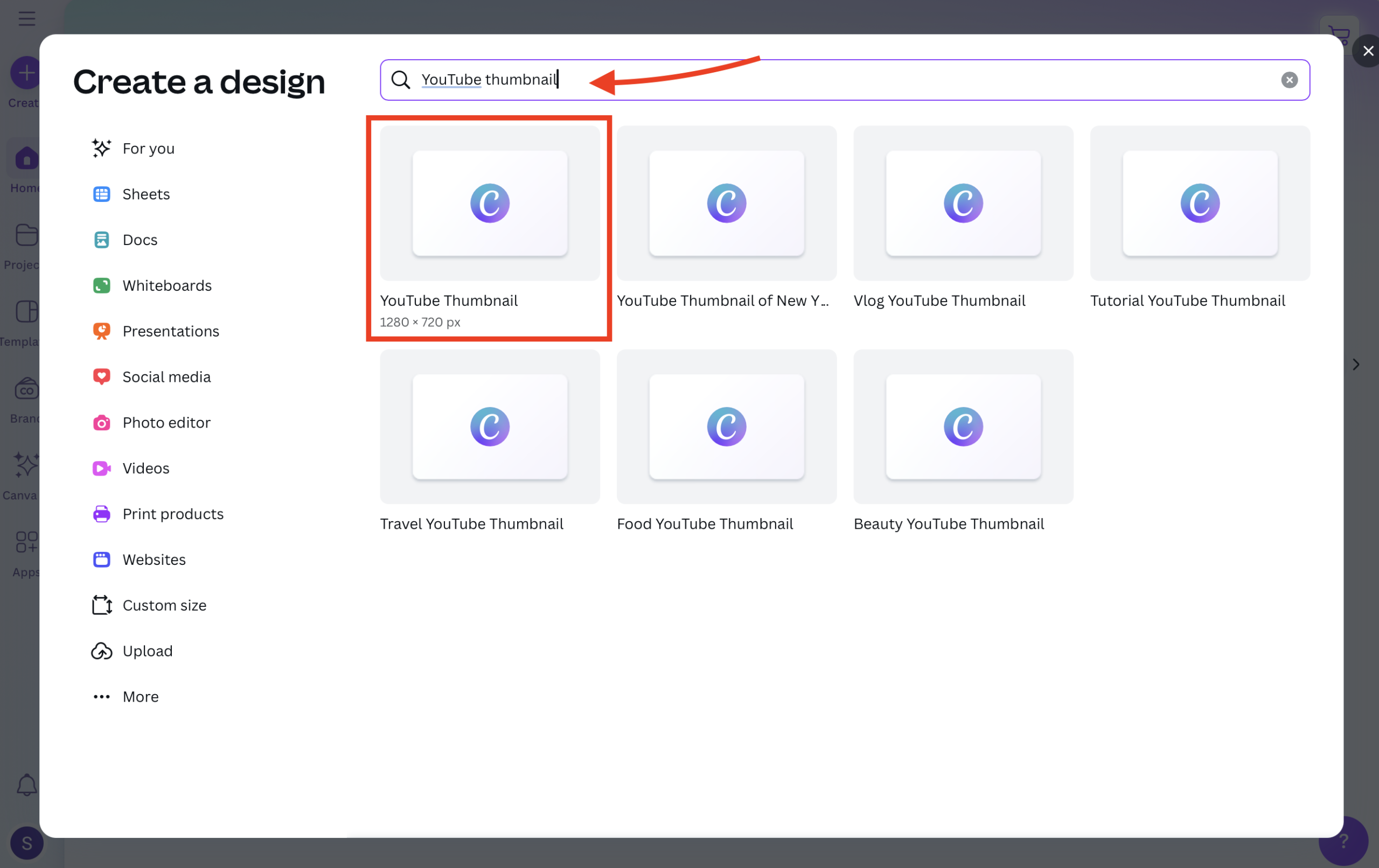
- Type in “YouTube thumbnail” and pick the first option. Canva will automatically start a new project with the perfect dimensions for your thumbnail.
- On the left side, you will notice a lot of prebuilt templates. Choose the option that best fits your needs by clicking on it.
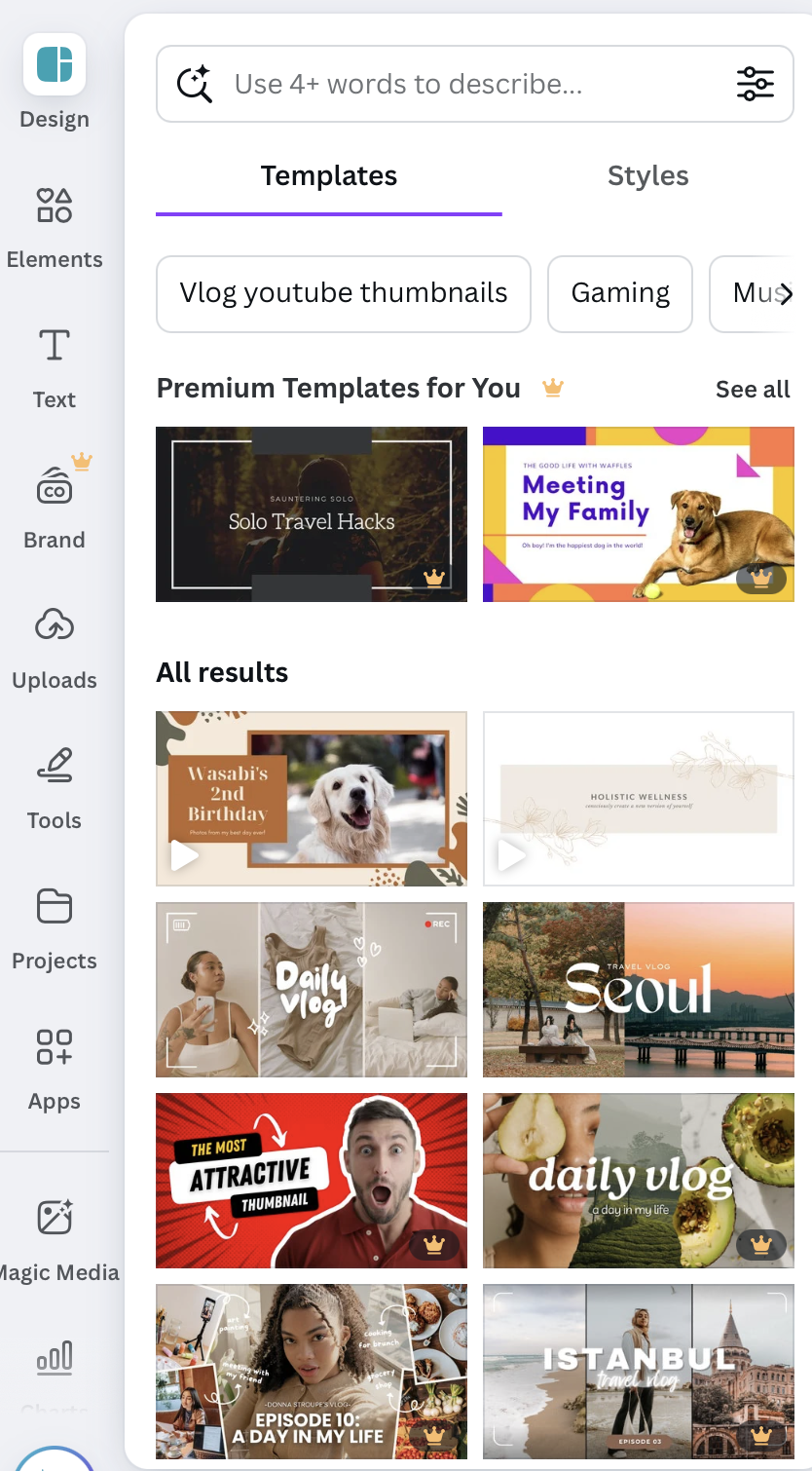
You can also search for one by describing it in the search bar.
If you do not see those options, click on Design on the left, and they will appear.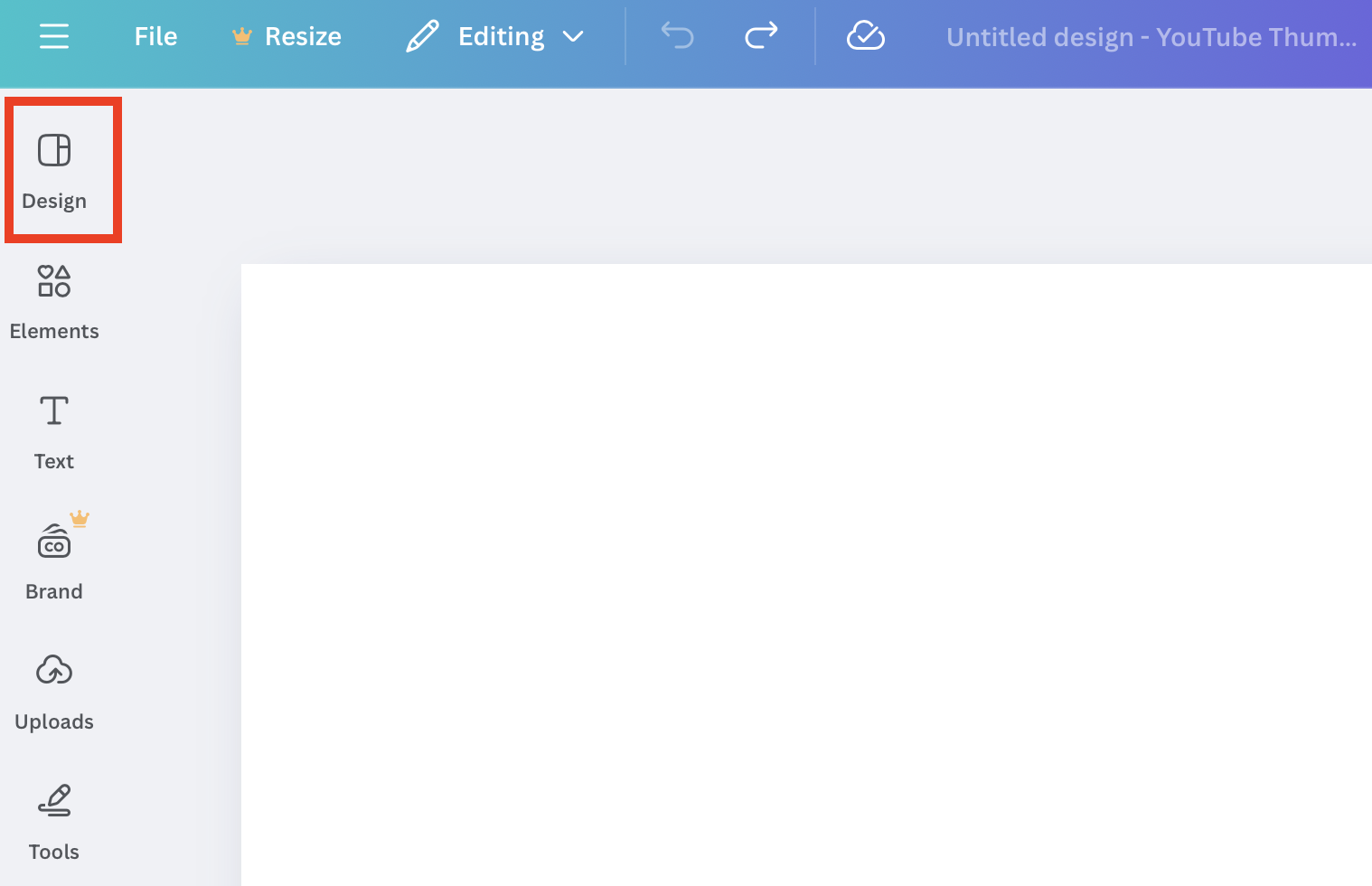
Customize the prebuilt template with your own images and text, or, if you don’t like those templates, design your thumbnail from scratch. - On the left-hand menu, click Uploads.
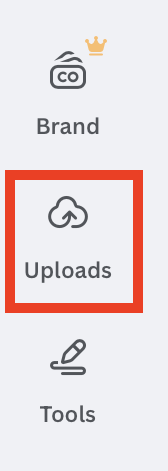
Click Upload Files and select the background image from your computer. Once uploaded, drag the image onto your blank canvas. Right-click the image and select Set Image as background.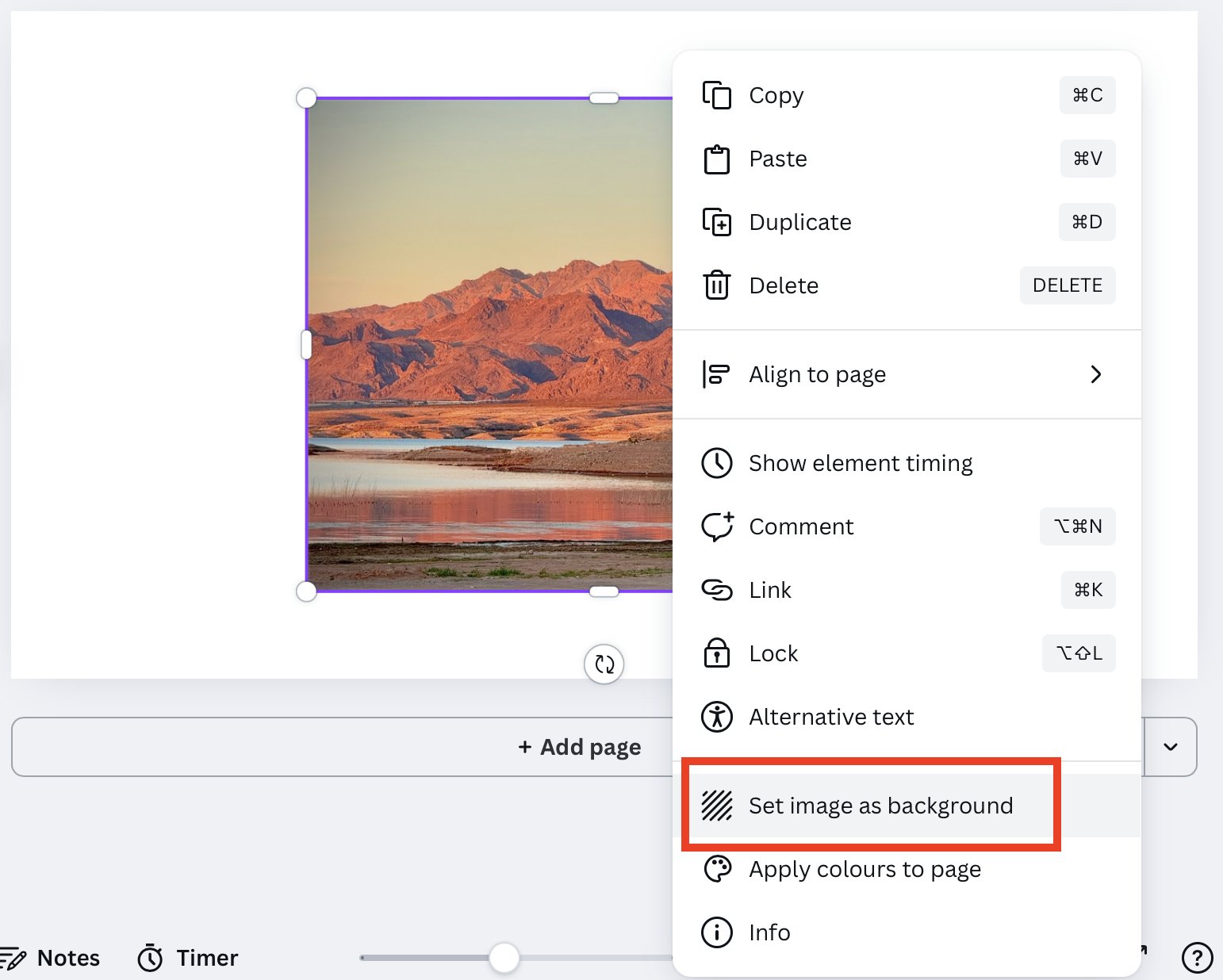
- You can set a plain color if you do not want to set an image as your background.
Click on the blank canvas. You will see a color swatch icon appear above your canvas. Click it.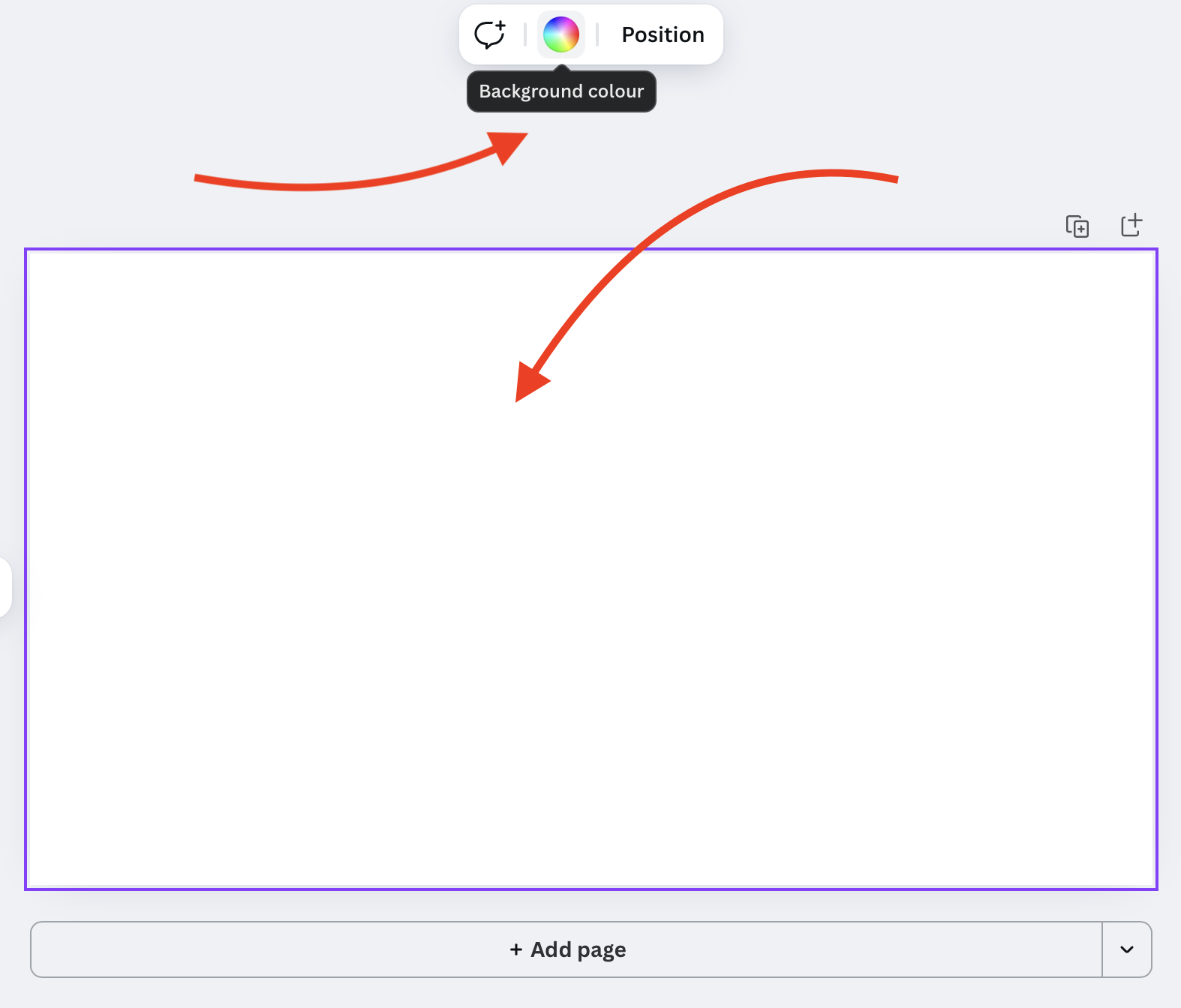
On the left, you will see a variety of solid colors and gradients. Choose the option you like best!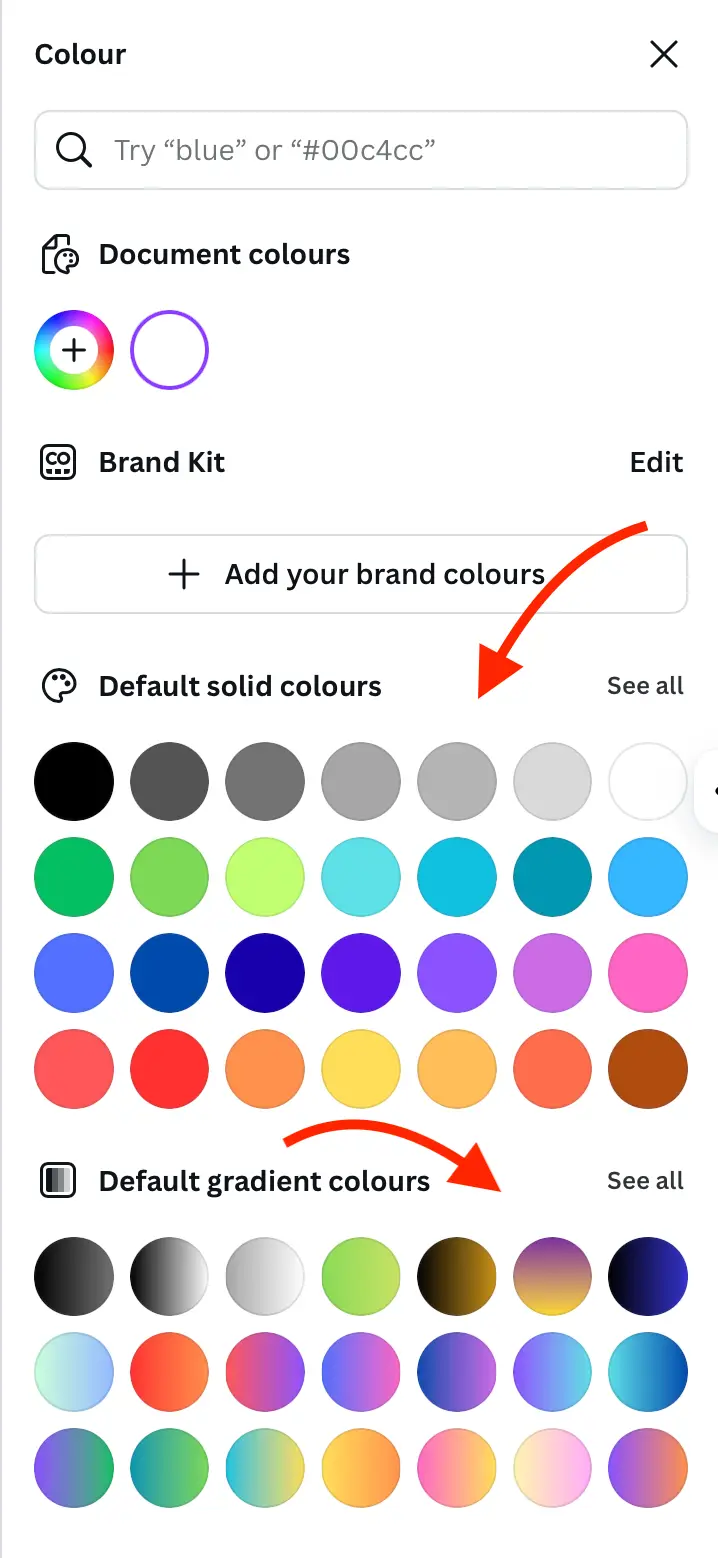
- Now that you’ve set up your background, you are ready to customize and finalize your thumbnail.
Drag and drop your additional images onto your canvas, such as your face with an expressive look. Resize and position it.
If needed, you can remove the background of your uploaded image by selecting BG Remover above your canvas. (It is a paid plan feature.)
Tip: If you do not want to sign up for a paid Canva account, use a free online background remover tool like Remove.bg. - Add text. On the left side of your screen, find the text option, and choose what kind of text you’d like to add (a heading, subheading, etc.). Click on the desired one and position it on your canvas.
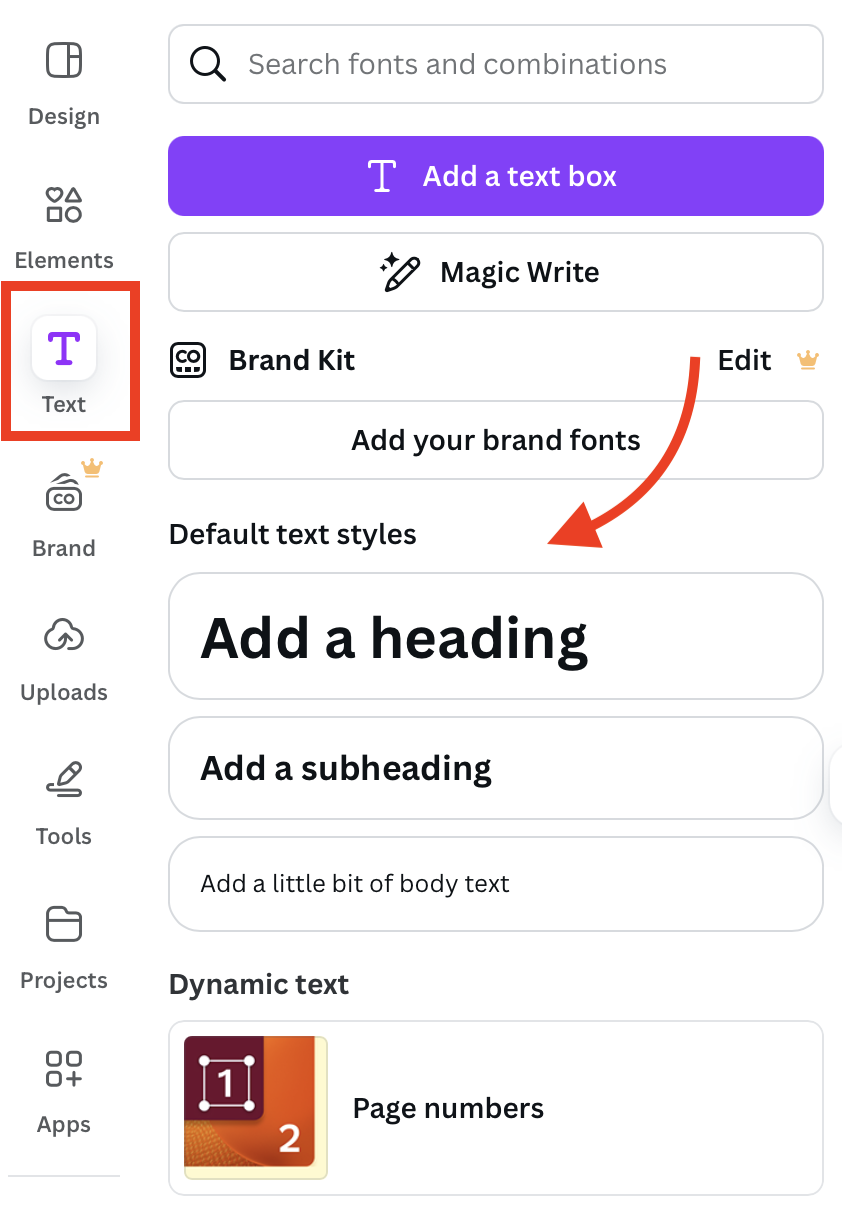
At the top, you’ll see options to customize the size, font, and color of your text.
Quick Tip: Your text should be bold and have a clean font – this will make it easier for your audience to read. - Review and add any finishing touches. Use the tools and options provided on your screen to explore what other elements you can add to your thumbnail.
Do not add too much clutter – your thumbnail should be readable on desktop and mobile devices.
When you are done reviewing, click Share in the top right corner of your screen.
Select Download from the available options in the bottom row.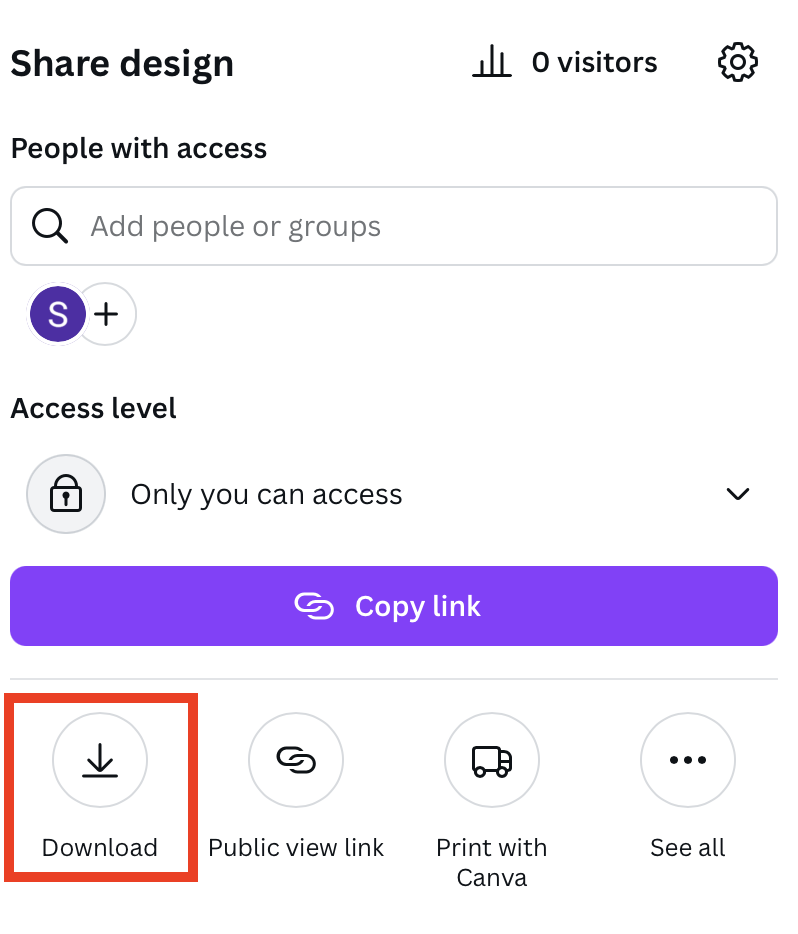
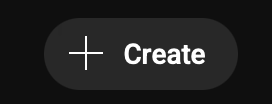
- Upload your thumbnail to YouTube. On YouTube, click Create in the top right corner.
Choose Upload Video.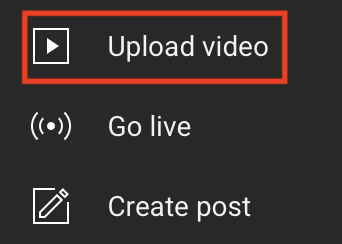
- You will be taken to YouTube Studio, where you can customize your video details, including the thumbnail. Scroll down to Thumbnail and choose the Upload file option.
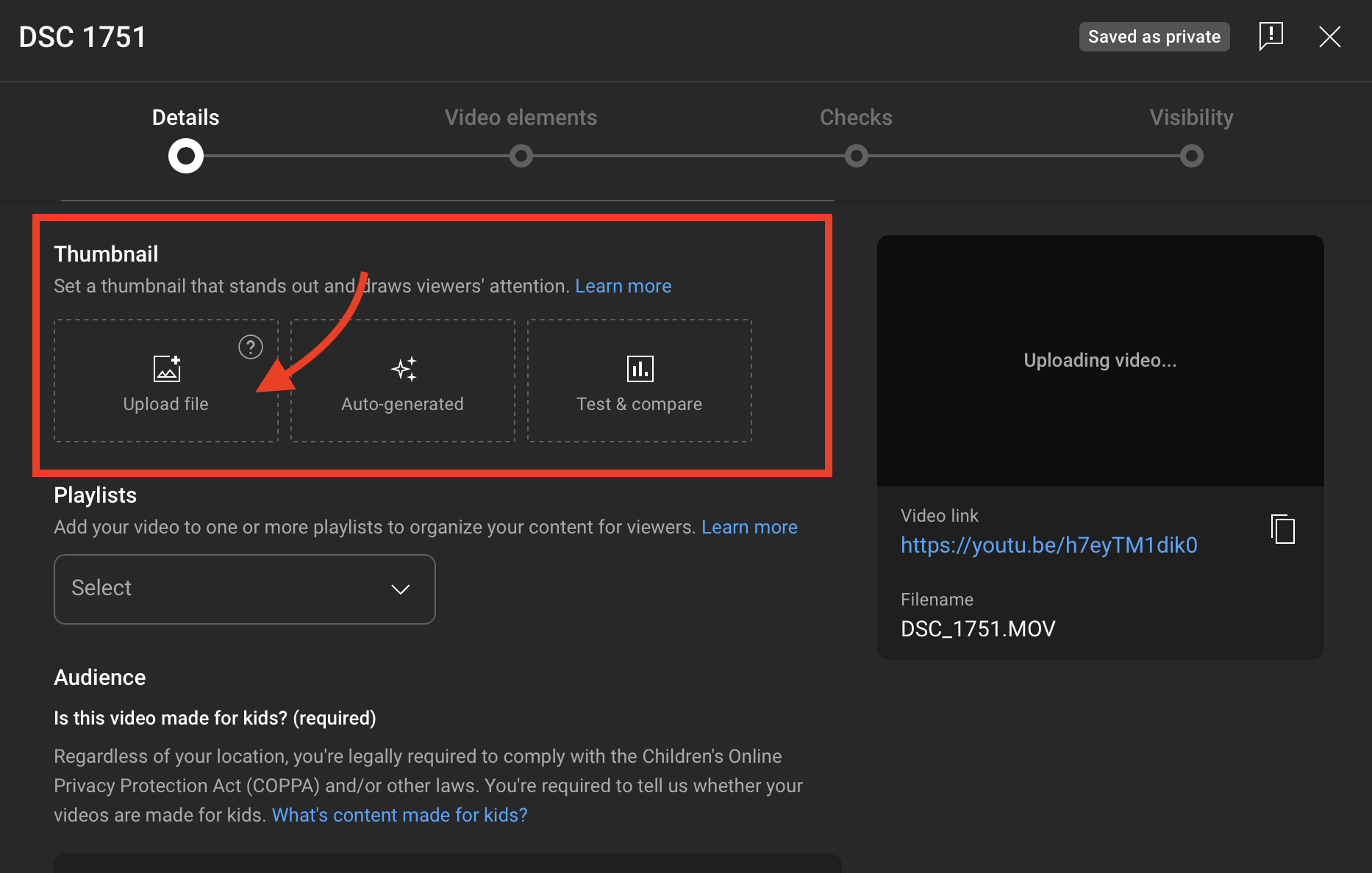
Upload the file you just downloaded from Canva.
That’s it, you’re done! Fill out the necessary fields and follow the prompts to post your YouTube video.
Want more actionable tips continually? Subscribe to Vavoza Insider to access the latest business and marketing insights, news, and trends daily with unmatched speed and conciseness. 🗞️