


Systematic competitor analysis is a good practice because it’s a shortcut to achieving your desired outcome.
The goal is to understand the content and advertising landscape in your niche and gain a competitive advantage by making more informed and strategic decisions.
Analyzing competitors gives you insight into many things, including the marketing channels that work best for your niche, the pain points addressed in their ads that resonate most with the audience, the keywords that work best for SEO and PPC campaigns, product features and customer reviews, and the strengths and weaknesses of competing products.
Imagine how much easier it would be to create products, generate leads, and create content if you knew the answers to at least several of these questions!
Today, we’ll explore and provide a step-by-step guide on using the Meta Ad Library to discover and analyze competitors’ ads. Let’s dive in!
What Is The Meta Ad Library?
The Meta Ad library is a public database that contains all advertisements running on the Meta platforms (Facebook, Messenger, Instagram, and Audience Network). This tool is free and available to everyone, even those without a Meta account.
Meta’s Ad Library was designed to increase advertising transparency and is a valuable resource for marketers, advertisers, business owners, and everyone who needs to monitor and understand the advertising landscape.
With this tool, you can monitor competitors, refine ad strategies, study advertising trends, collect creative and innovative ideas, and even see who pays for the advertisements.
Here is what you can see when you search for an advertiser in the Meta Ad Library:
- Ad Creatives: Images, videos, and text used in the ad. If the advertiser is practicing A/B testing, you’ll also be able to see the different ad variations.
- Start Date: The start date of the ad – longer ads tend to be more successful.
- Advertiser Information: The details about the account or Page running the ad.
- Platforms: Where (on Meta) the ad is displayed – Facebook, Instagram, etc.
- Active Status: Whether the ad is currently running or not.

Navigating Meta Ad Library: Step-By-Step Guide
Let’s explore a simple example to learn how to navigate the Meta Ad Library:
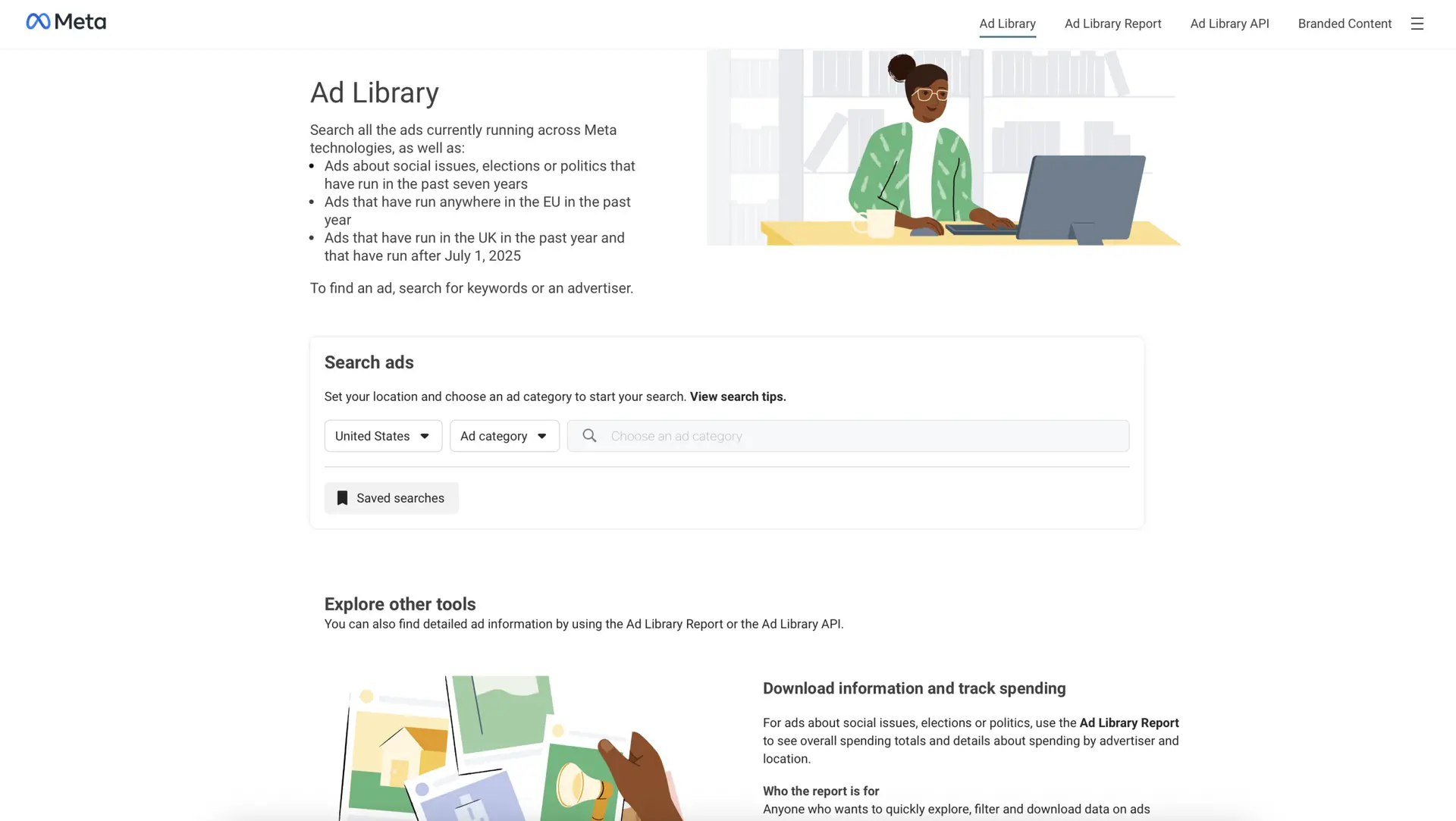
- Go to Meta Ad Library. You should end up on this page.
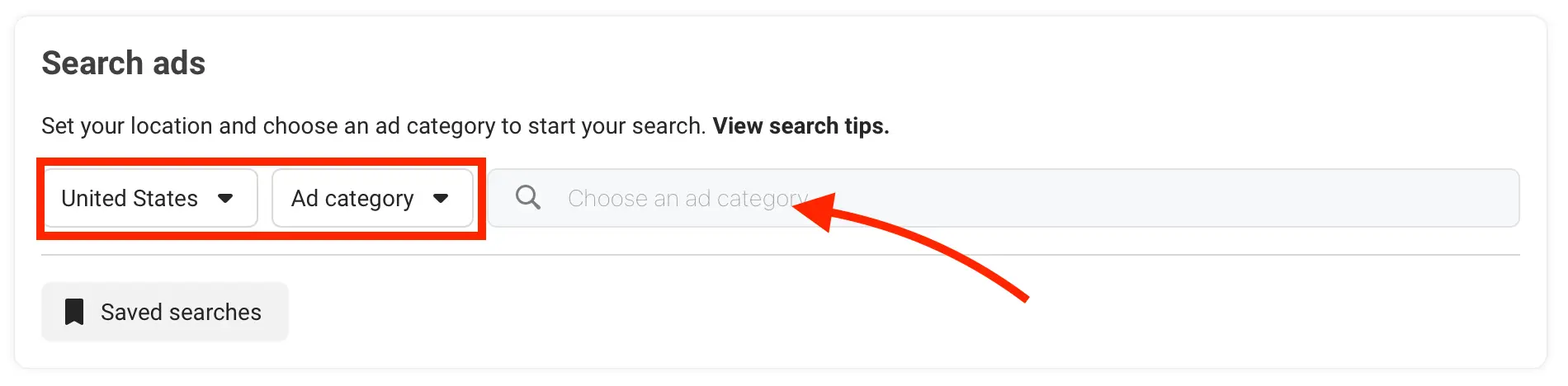
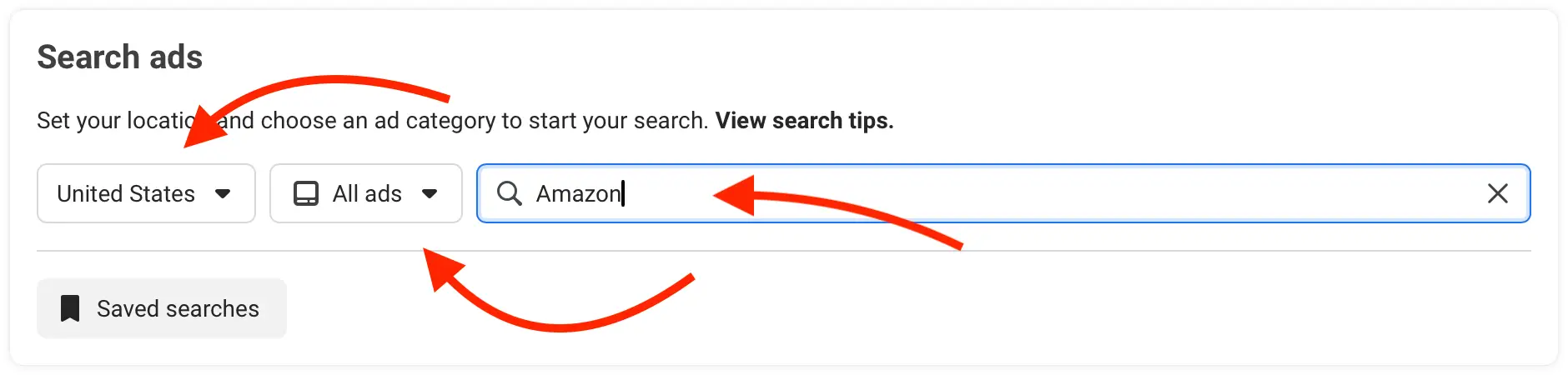
- Find the section that says Search ads, select your country, ad category, and type in the keyword or company/brand of your interest. (For this example, we’ll use a specific company – Amazon.)
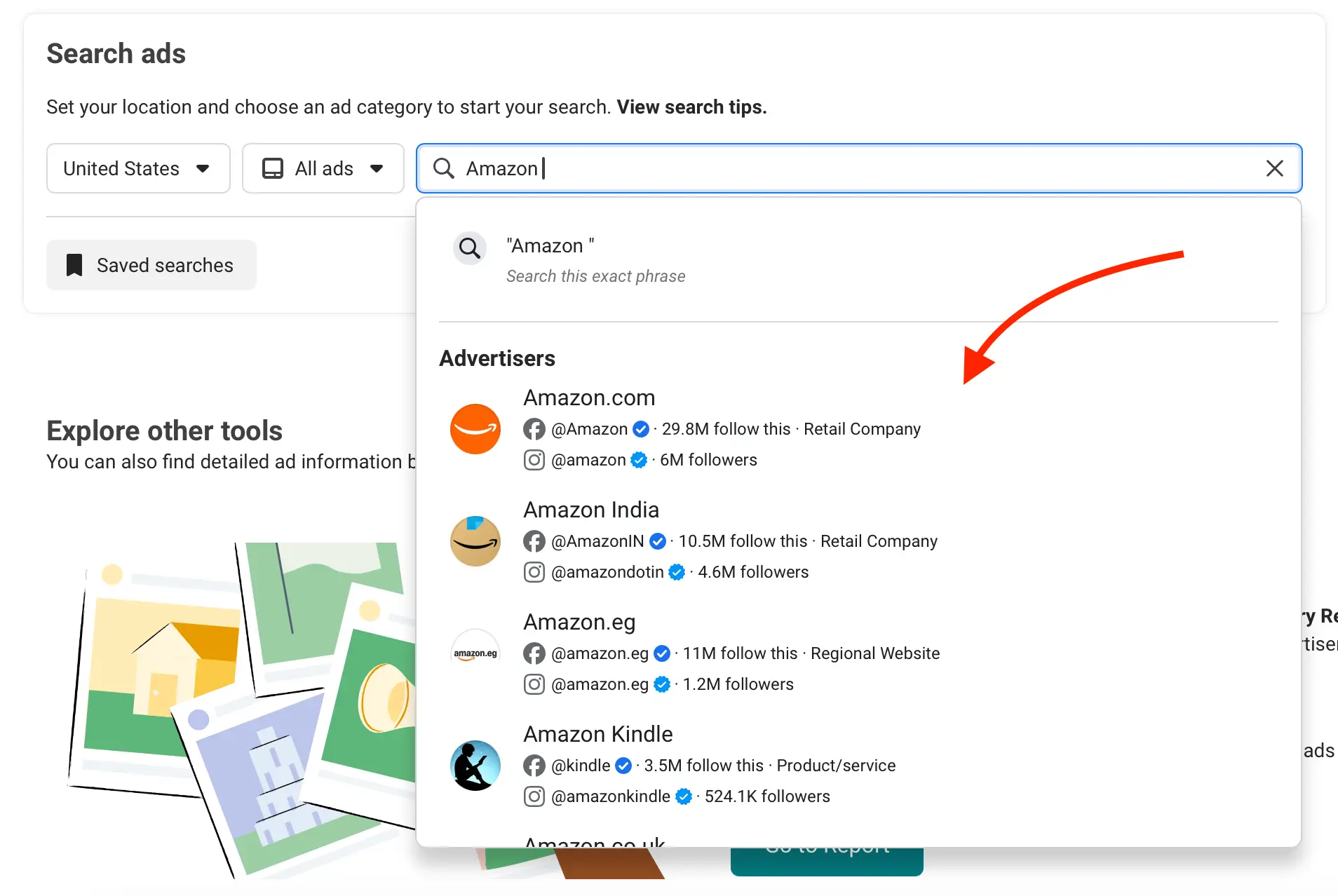
- You might see multiple search results in the dropdown – select the most relevant one.
- Once you select an option, you will see the relevant search results, as shown below.
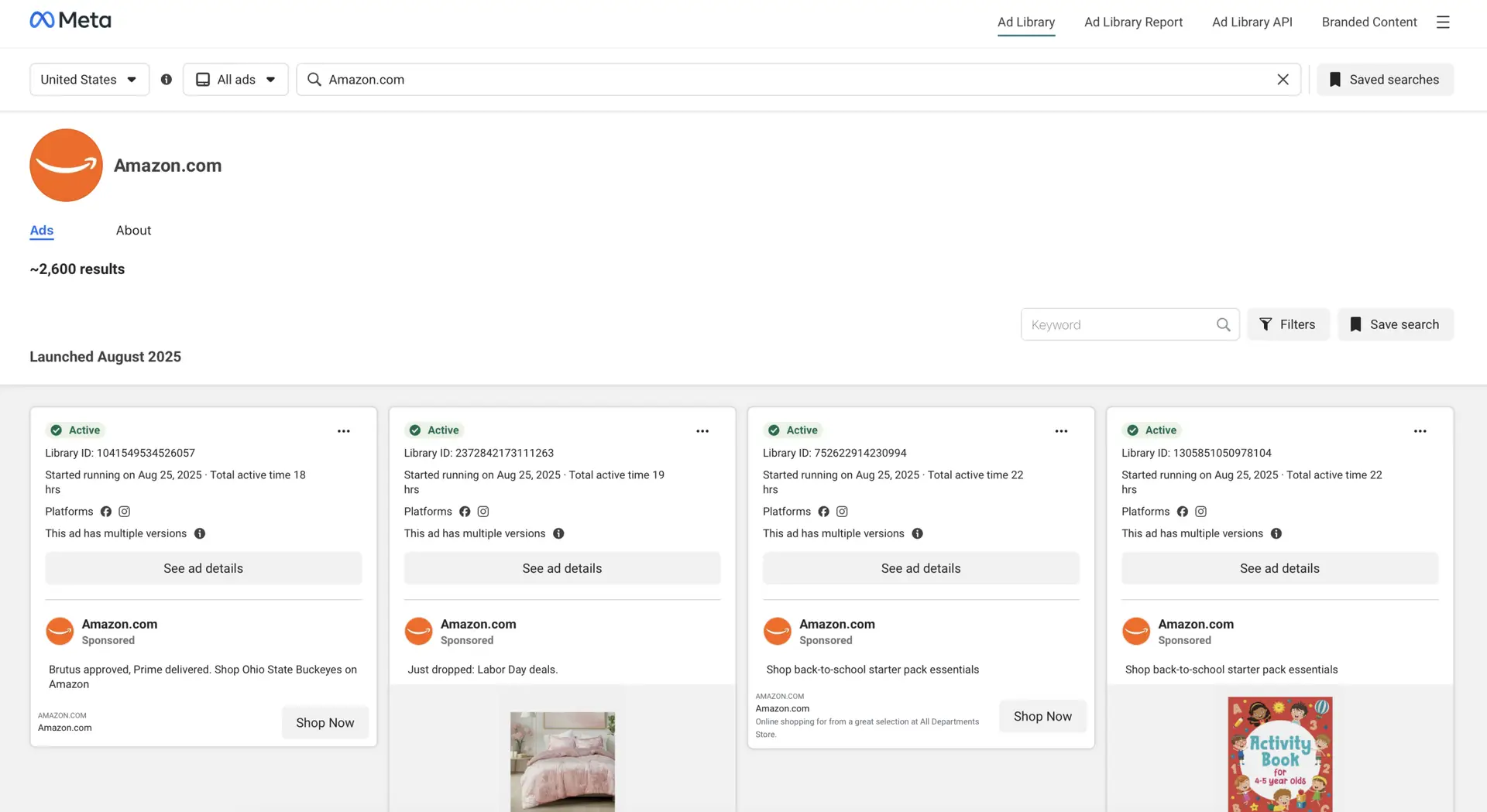
Scroll down and find the ad that interests you most.
To make your search easier, filter your search results. In the top right of the page, you’ll find a section where you can search with filters and/or by keyword.
The filters will show up underneath the section. You can then remove them by clicking the X icon.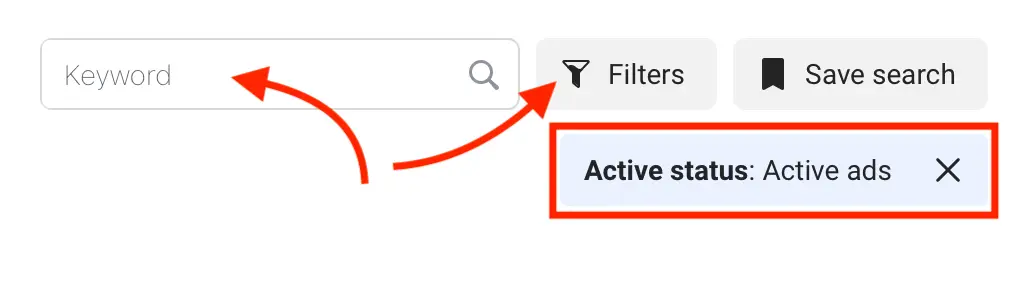
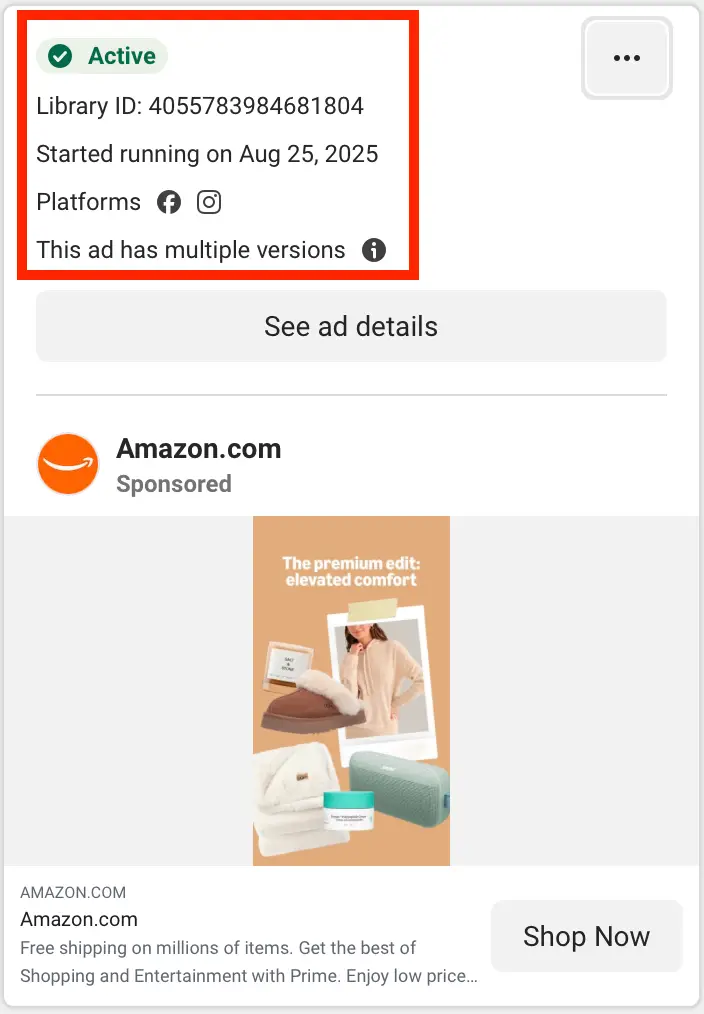
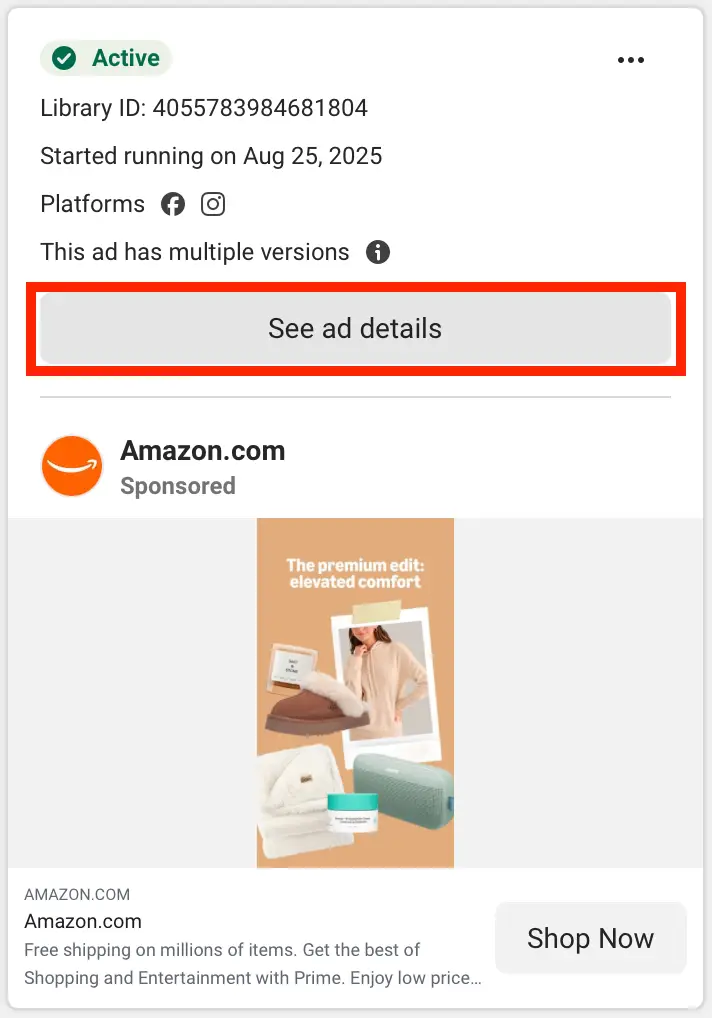
- Choose an ad to analyze. The top part of the ad shows when the ad started running, what platforms it is running on, and whether the ad has multiple versions.
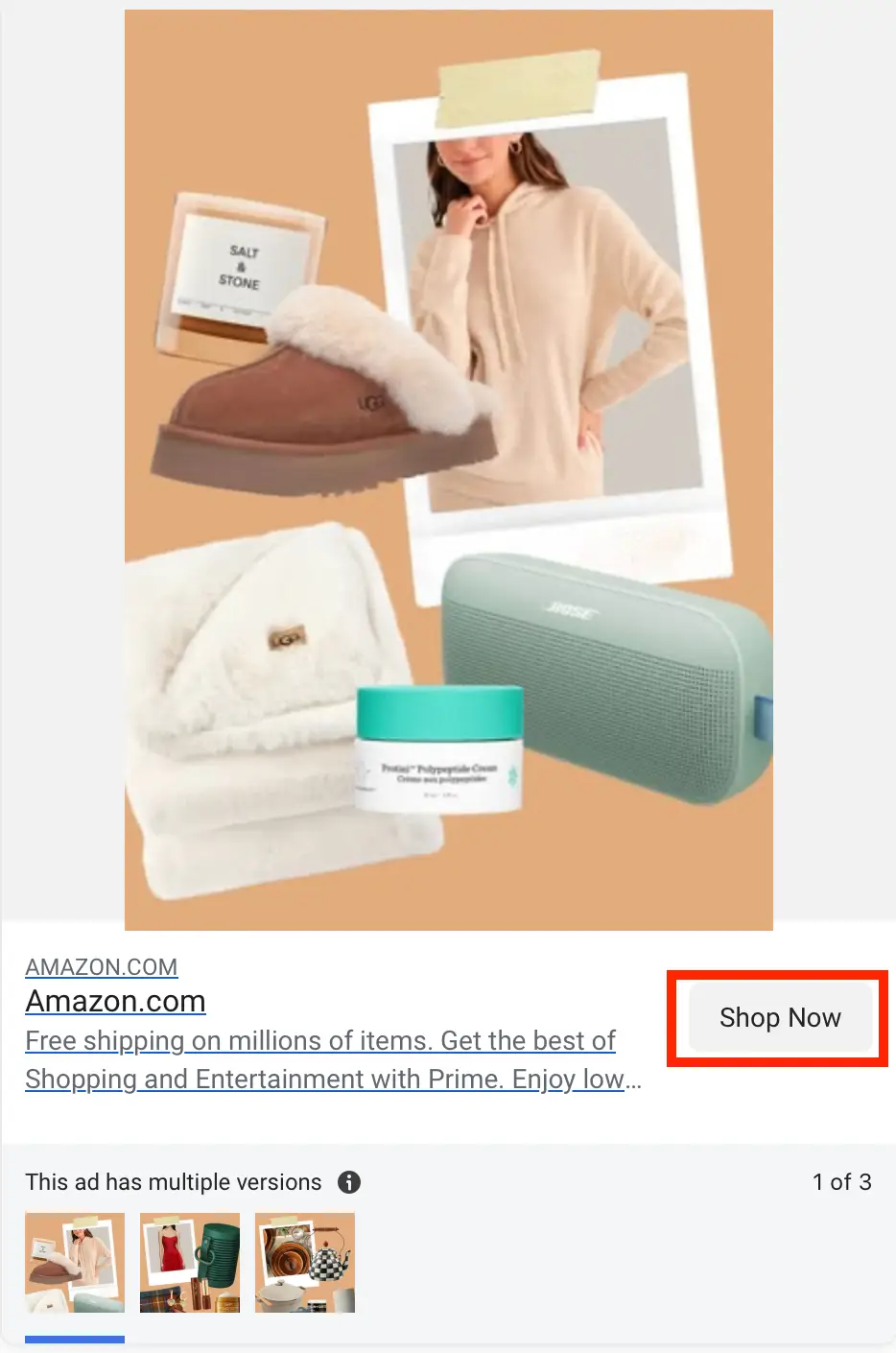
- Next, you will see that the ad has two clickable options: See ad details and the call-to-action button (in our example, the CTA button text is Show Now).
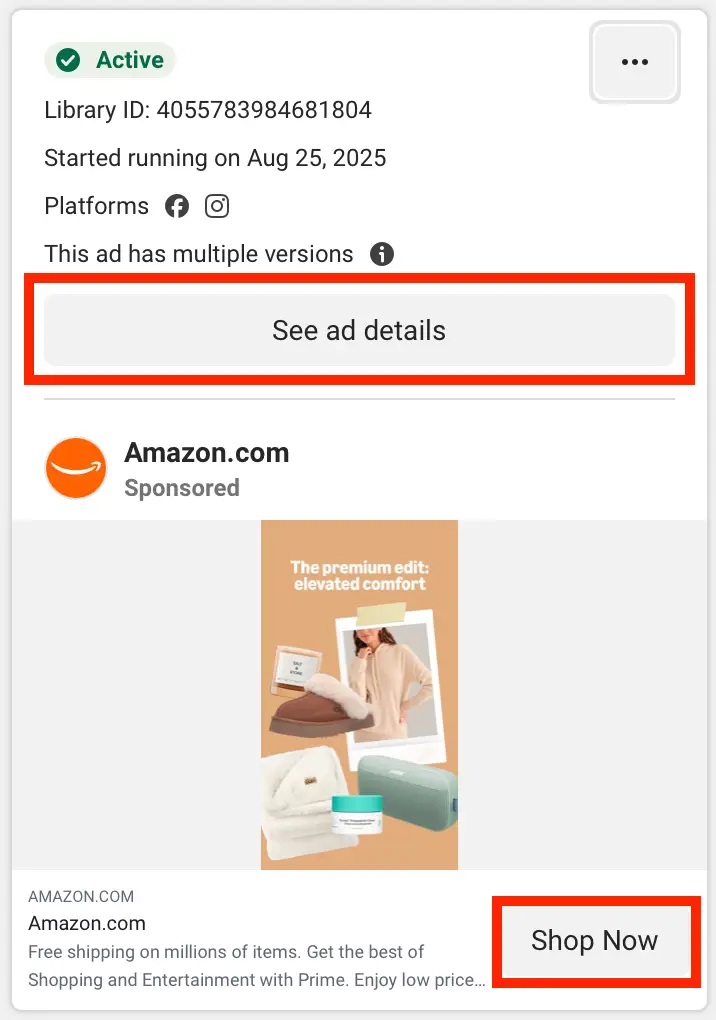
- Click on See ad details.
You will see a pop-up screen with the exact details of the ad, but if you scroll down, you can see what ad versions are currently running.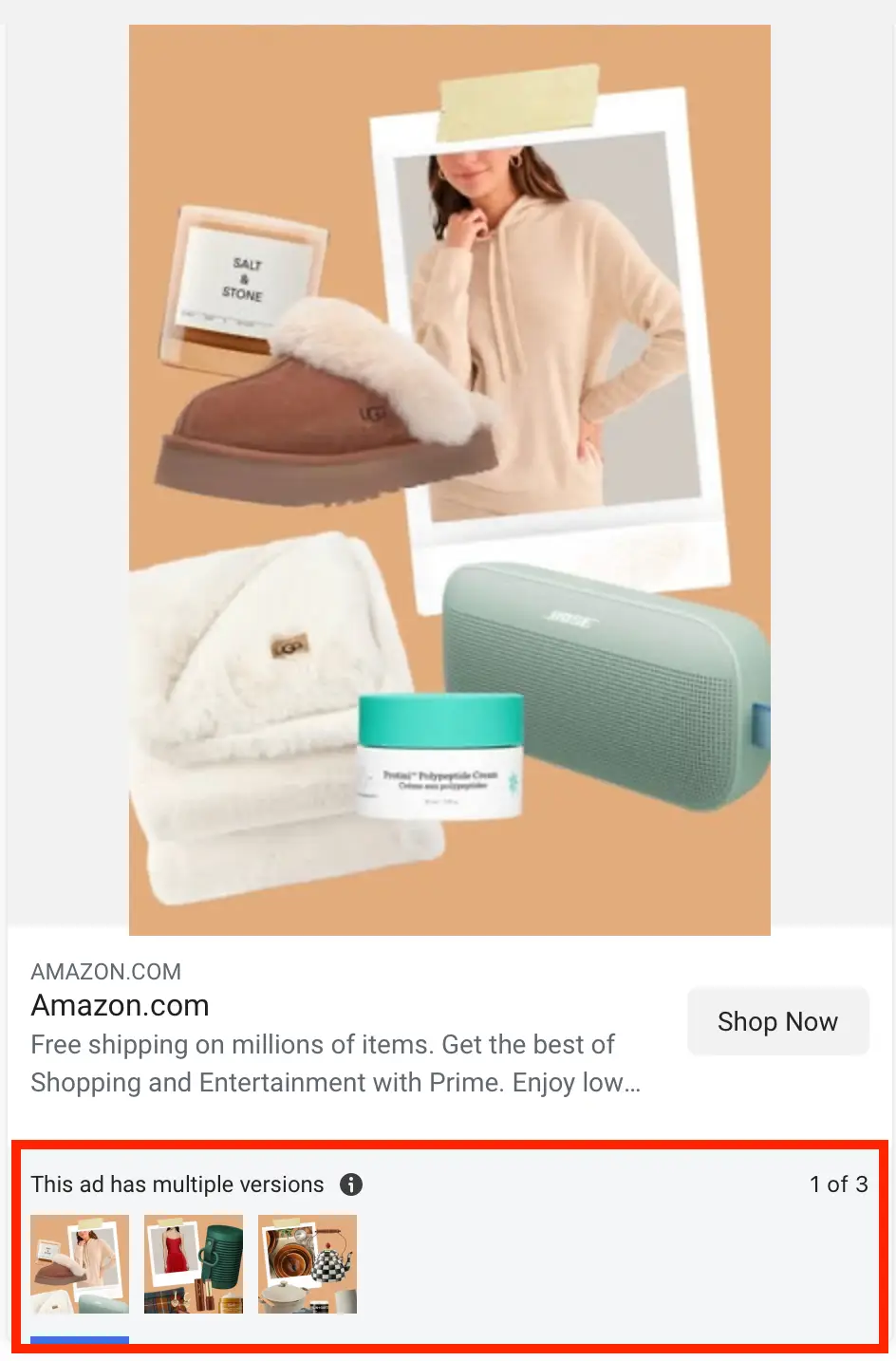
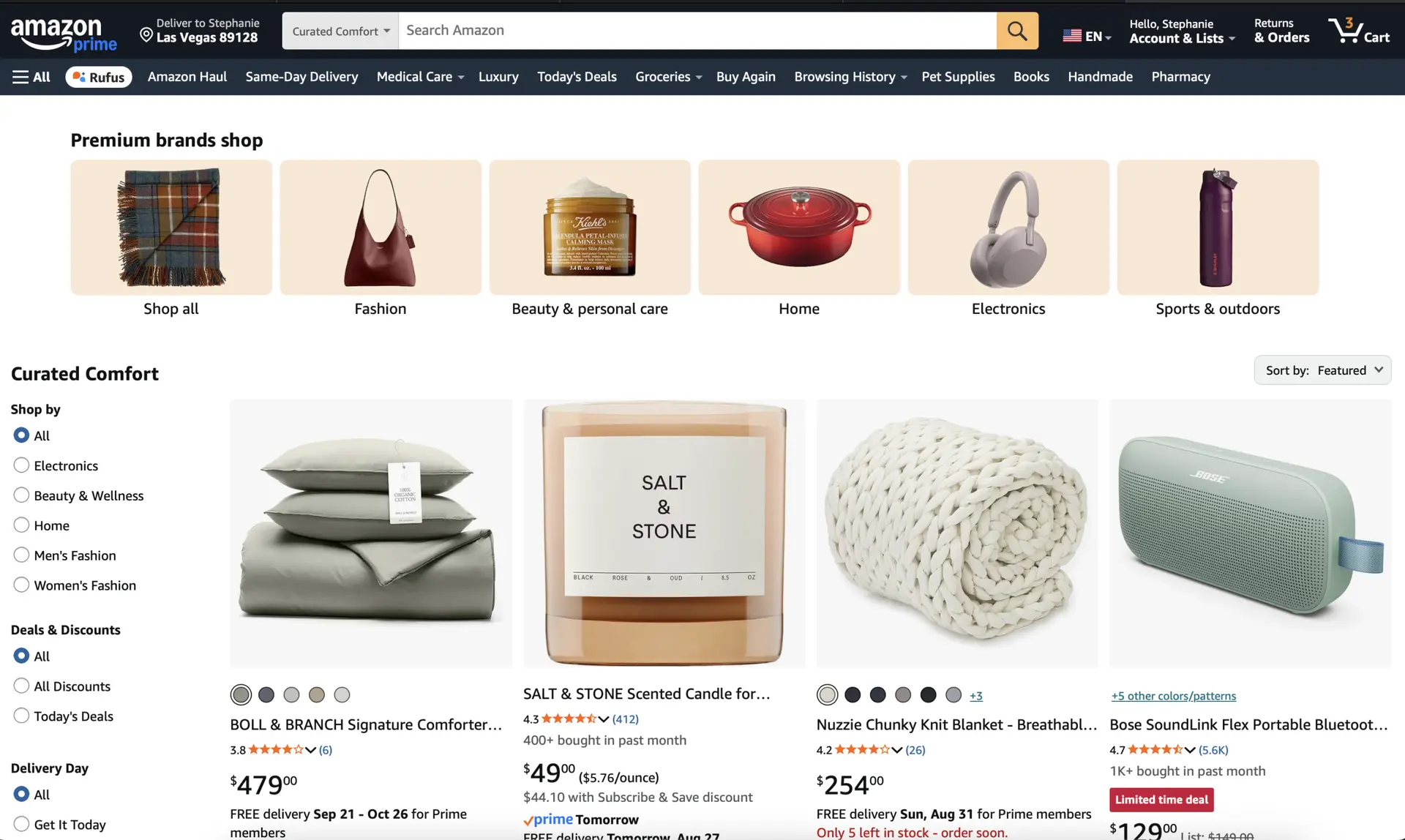
- Once you’ve clicked the CTA button, you will be taken to the advertiser’s landing page (or wherever they want you to go after clicking their ad).
Now that you’re familiar with the basics of navigating Meta’s Ad Library, let’s dig a little deeper.
For this example, we will search for active ads by keyword. We’ll use “affiliate marketing” as the keyword in this guide. (You can choose a different keyword related to your current niche.)
- On the main page of Meta Ad Library, select the location and category, and type in your keyword. You will see a list of specific advertisers in the drop-down, but hit Enter or Return on your computer or click Search this exact phrase.
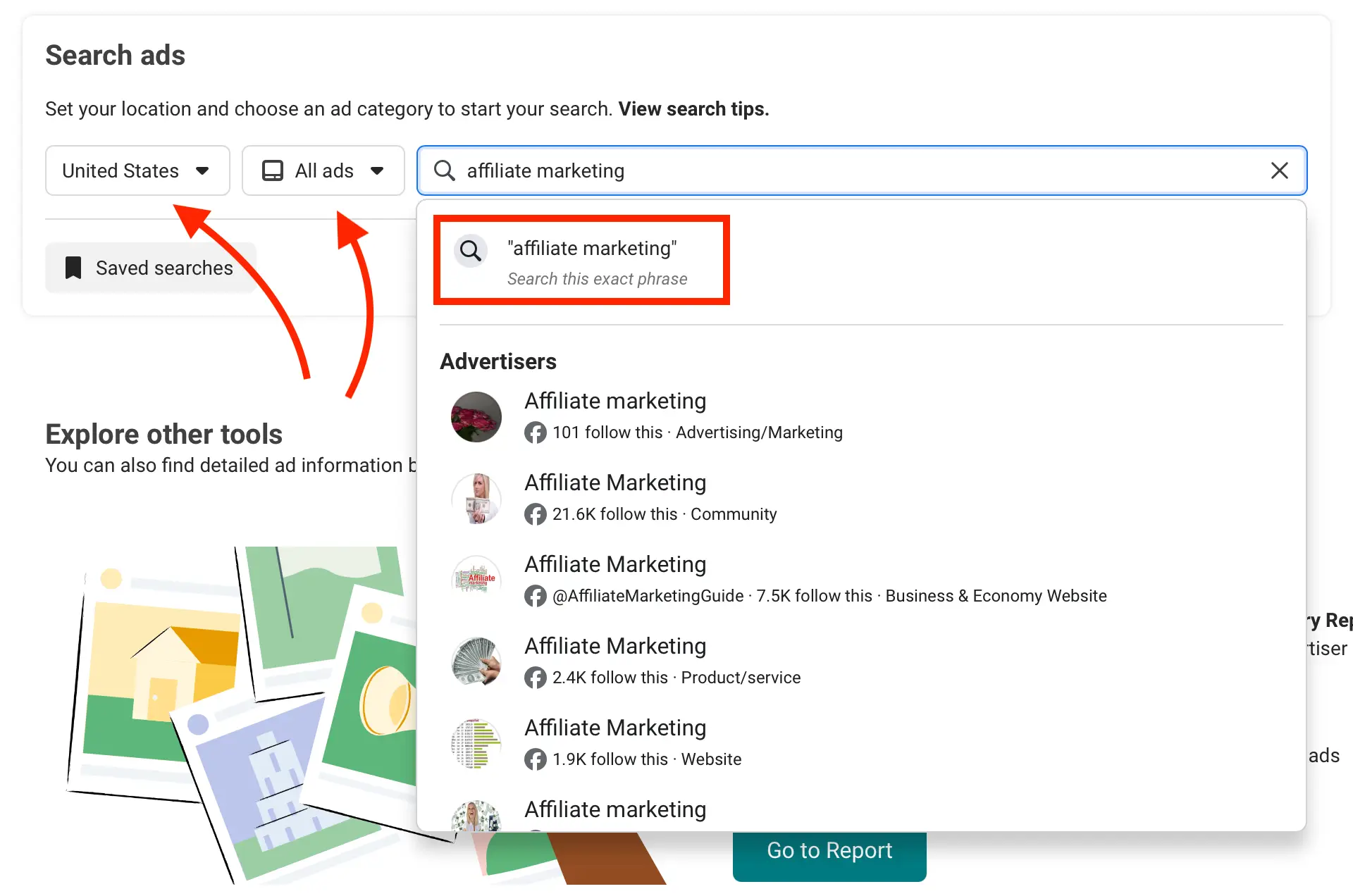
Note: Your search will show ads from various people and accounts. Some ads will repeat themselves, as some people have multiple ad versions running. - You will notice that different people use different CTA buttons. The most commonly used one is “Learn more.” Other popular ones include “Shop now,” “Sign up,” and “Download.”

(FYI: Depending on how the ad was set up, you may not see a CTA button.)
Clicking on the ad will direct you to the promoted landing page, where you can analyze things like the user experience and the consistency of messaging between the destination page and the ad.
You will also notice that there is now only one option at the top of the page, and that is Filters.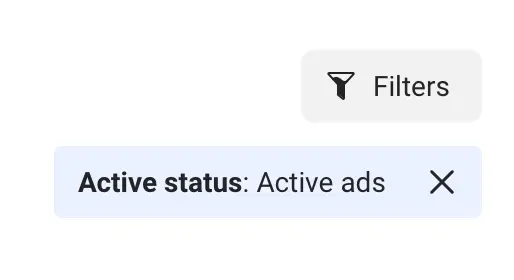
Note: The active ads promote various affiliate programs and affiliate marketing courses – keep that in mind when searching for similar niches. - If you click on the description above the ad creative, you can see the full version.
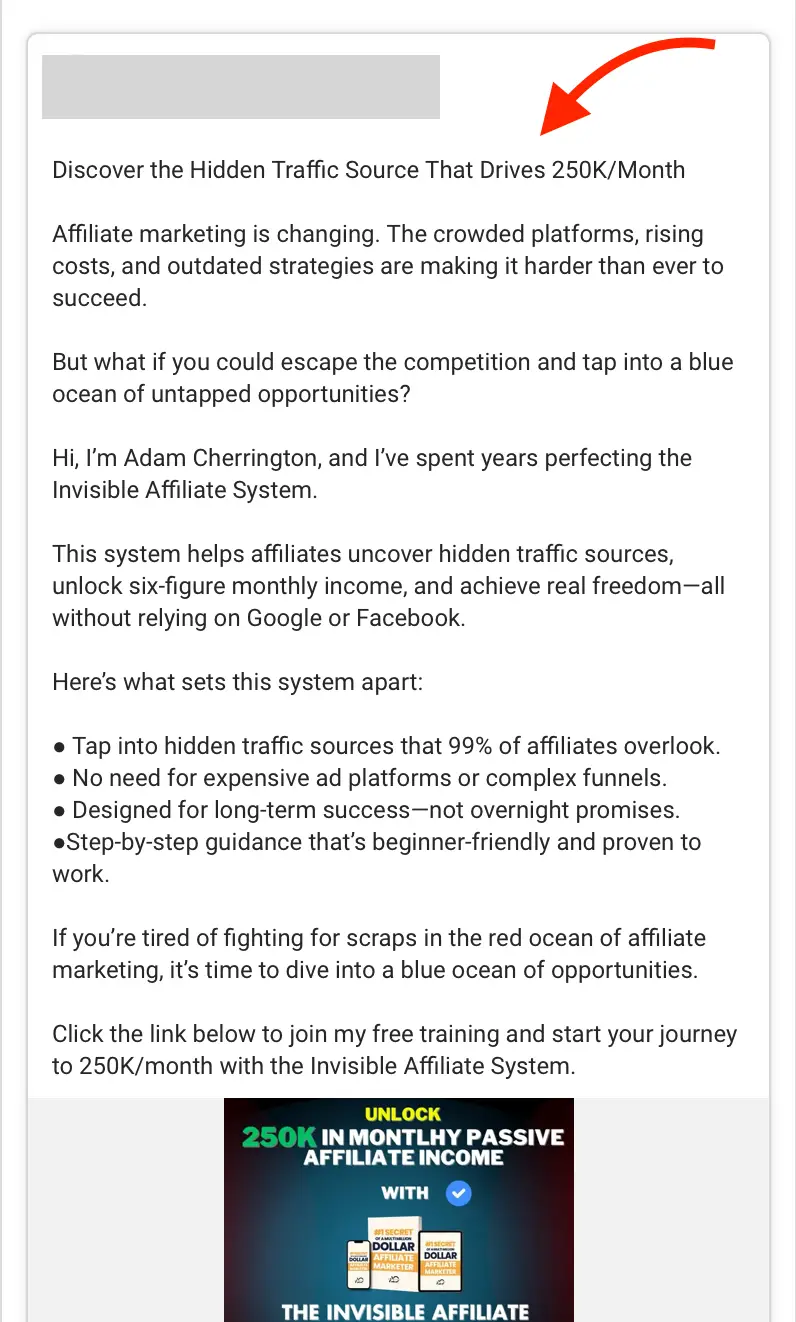
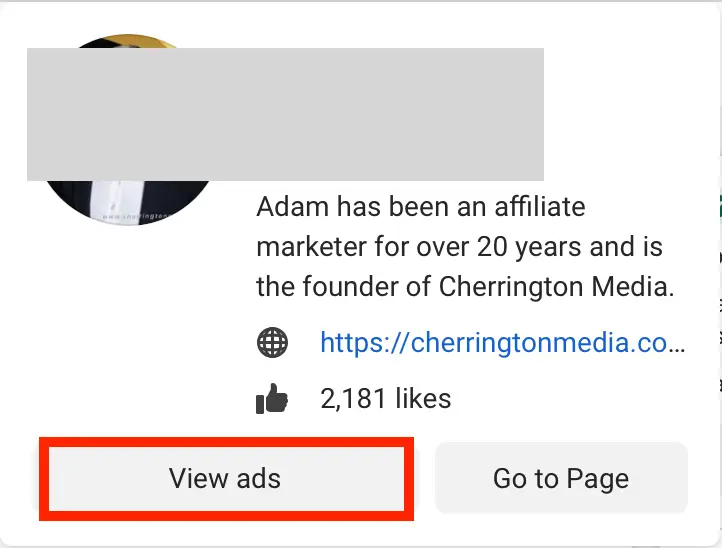
- If you hover over the page profile, you can see an overview of the page, its number of likes, the main website, and two options: View ads and Go to Page.
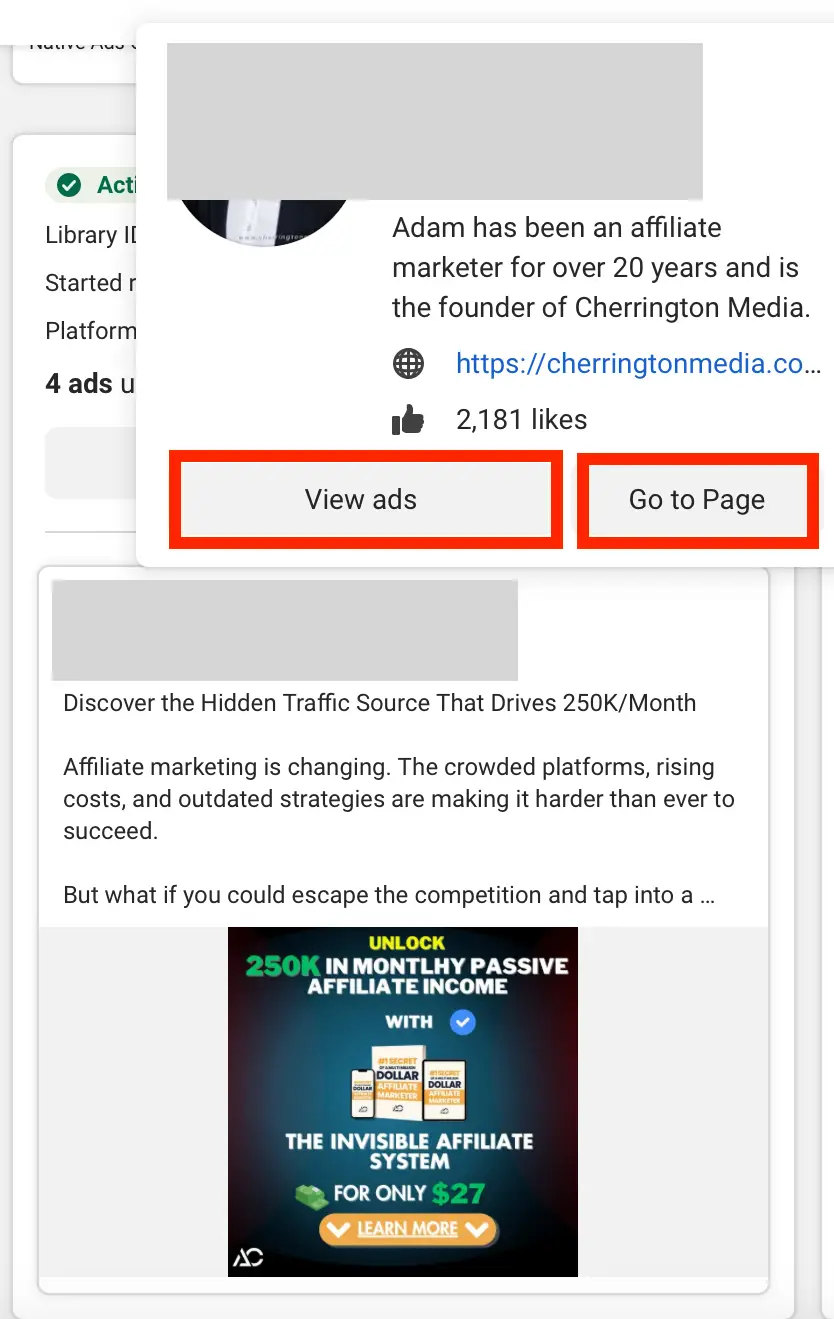
- If you click View ads, you will be directed to the page that lists all of the ads currently run by this account.
It will display the approximate number of ads run by this account – click through the ads to discover how the advertiser phrases things, what creatives they use, and any other details that might interest you.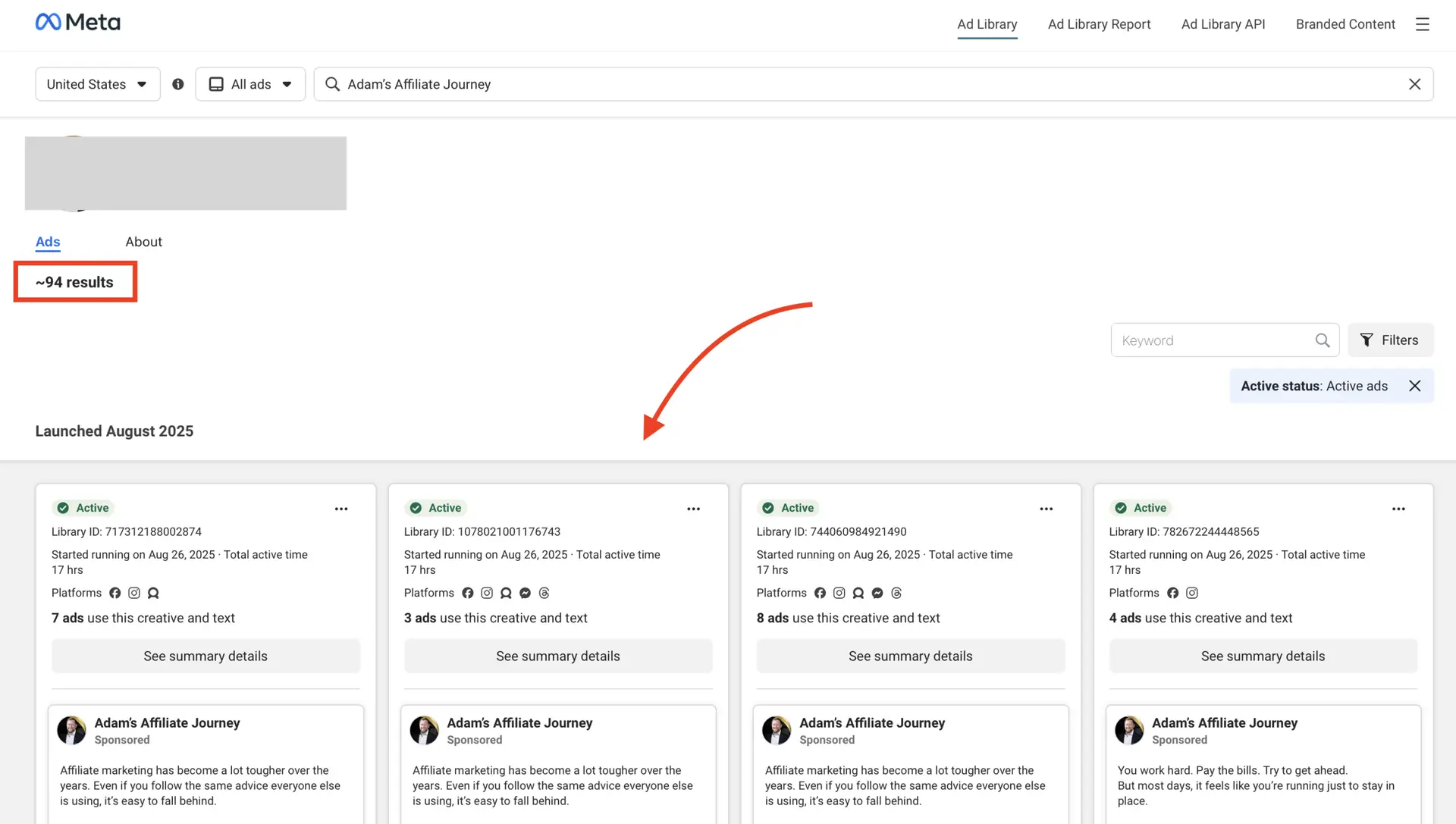
- Repeat this process for every niche or advertiser to analyze your competition and gather new ideas for yourself!

Bonus: Branded Content By Meta Ad Library
Here is a bonus guide to discovering branded content using Meta Ad Library.
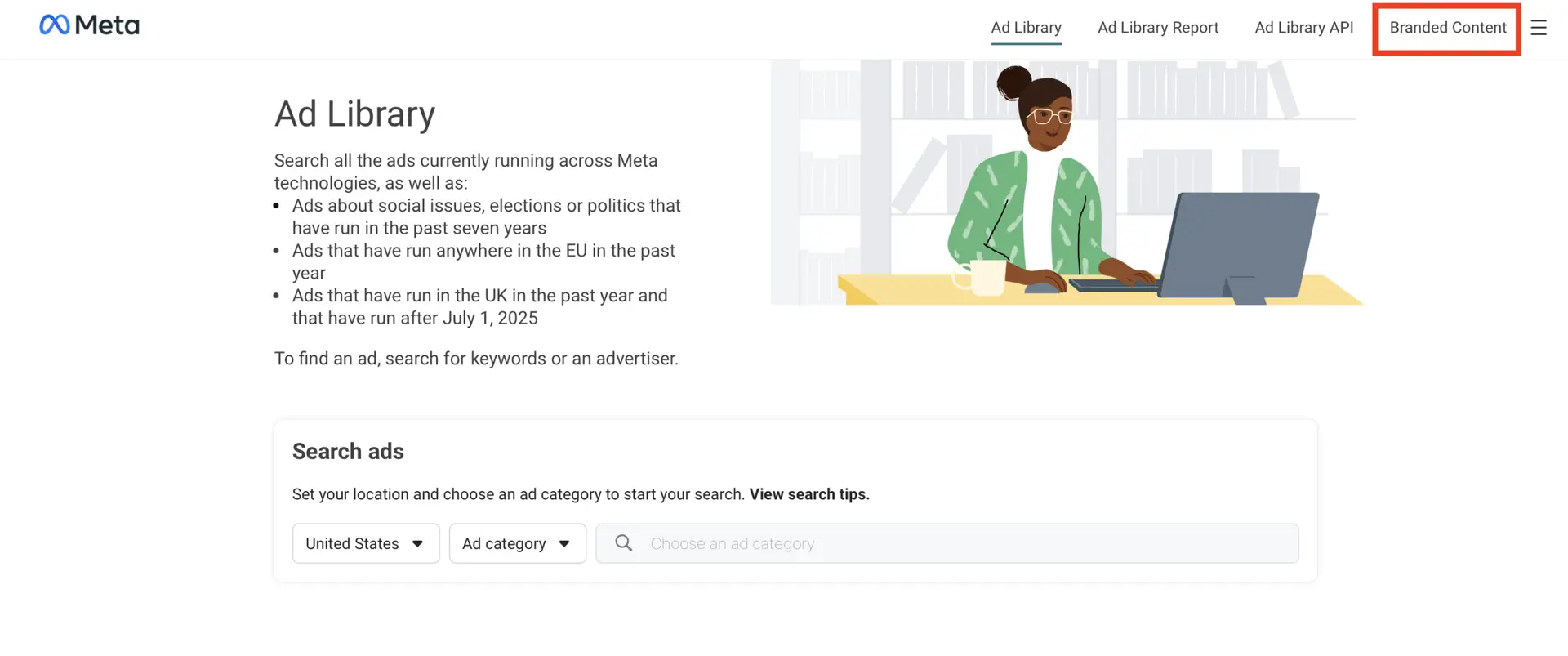
- Go to Meta Ad Library and locate the Branded Content section.
- Filter by platform and date, then type in the business of interest or creator.
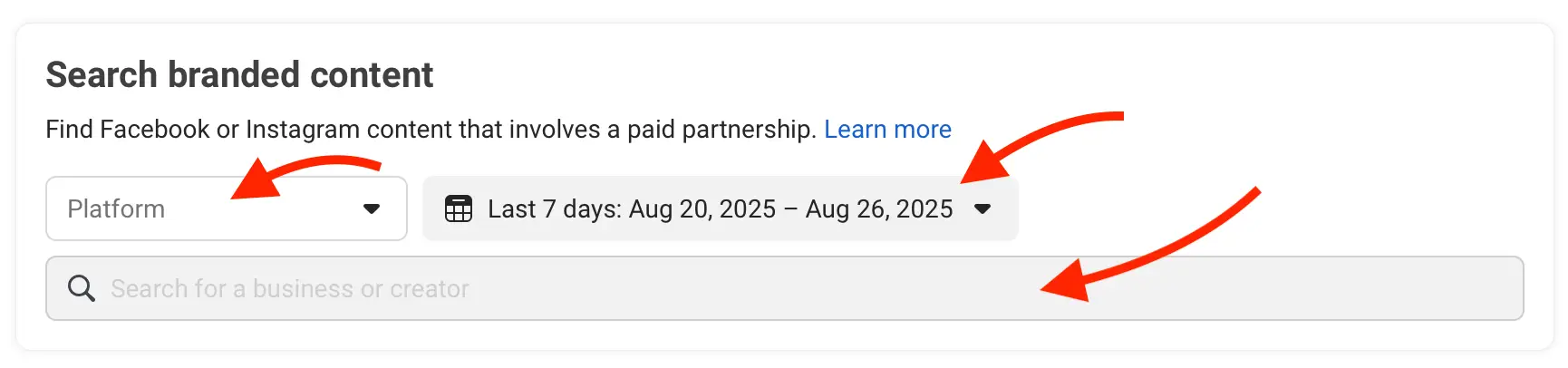
Click enter to reveal the brand deals. (For this example, we are using L’Oreal Paris Official.) - This page will reveal the following: the number of brand deals, the creator the brand partnered with, the type of content, and the link to the piece of content.
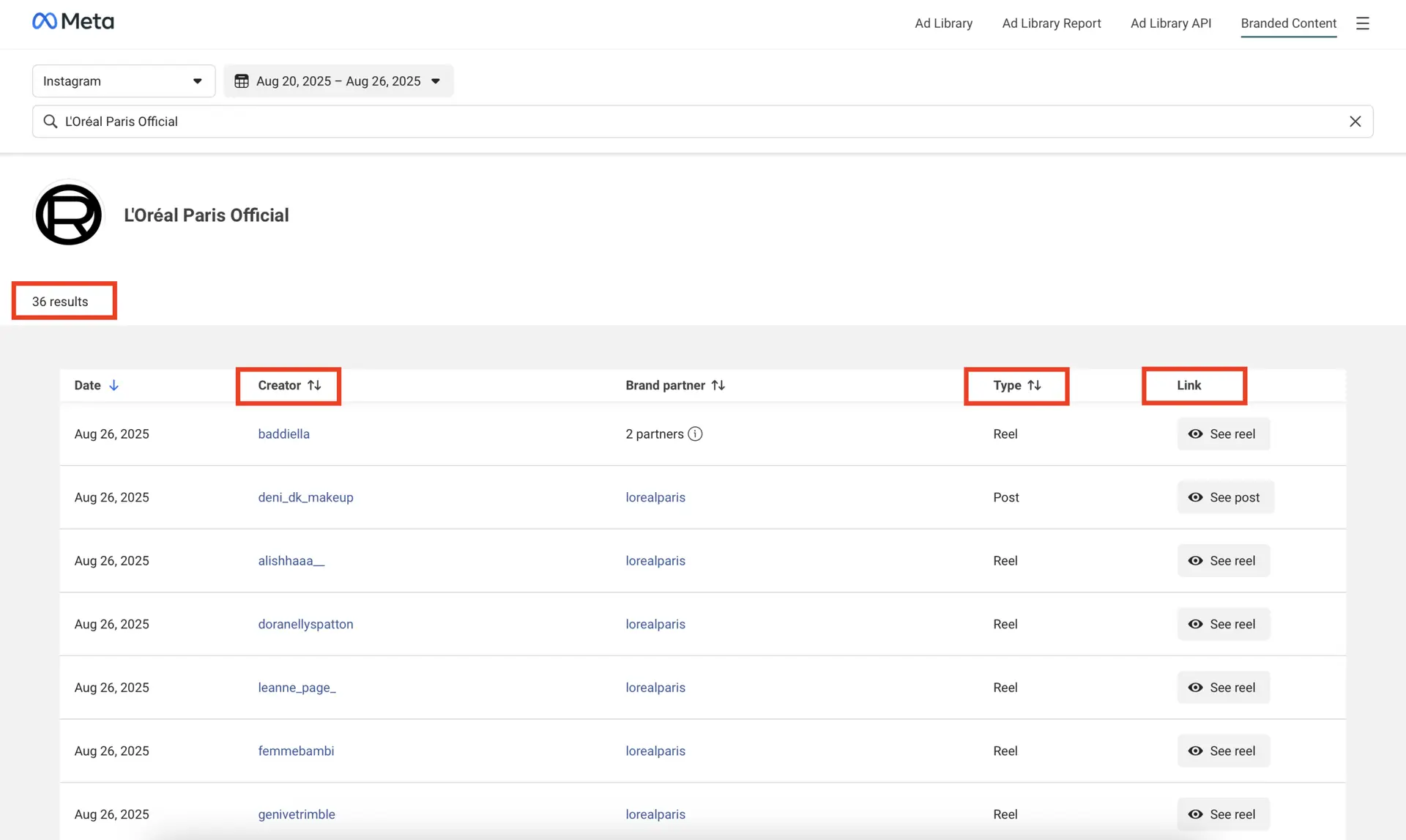
- Choose the creator and piece of content that interests you, and analyze the following details: the creative, the caption, and engagement metrics.
Examine the creative to understand the content style and how the brand deal was integrated into the image or video.
Look through the caption to discover the messaging, CTAs, and any specific promotion-related details.
Notice how the public engaged with the ad (likes and comments). This will give you an idea of how people received the post.
When browsing the Meta Ad Library, pay attention to details like overall engagement and whether the advertiser keeps reusing them.
Remember, if any particular ad has been active for a while, has a lot of engagement, and the company keeps using it and testing variations of it, that’s a strong indicator that it’s working.
Want more actionable tips continually? Subscribe to Vavoza Insider to access the latest business and marketing insights, news, and trends daily with unmatched speed and conciseness. 🗞️
Key Contributors: Stephanie Hill, Vlad Strizheus